
How do I create a new location or edit an existing location profile?
|
This article is for administrators who are creating a new location. If you are looking to gain access to a location, submit a Support Ticket in the application; for more information please refer to "How do I get access to more locations". |
To edit an existing location:
- Navigate to the Admin menu
- Select Locations
- Select on Location that you wish to edit
- Make edits and Select Save
To add a new location:
There are 2 ways to add a new location; Import Locations or add one at a time
Add Singular Location:
- Navigate to the Admin menu
- Select Locations
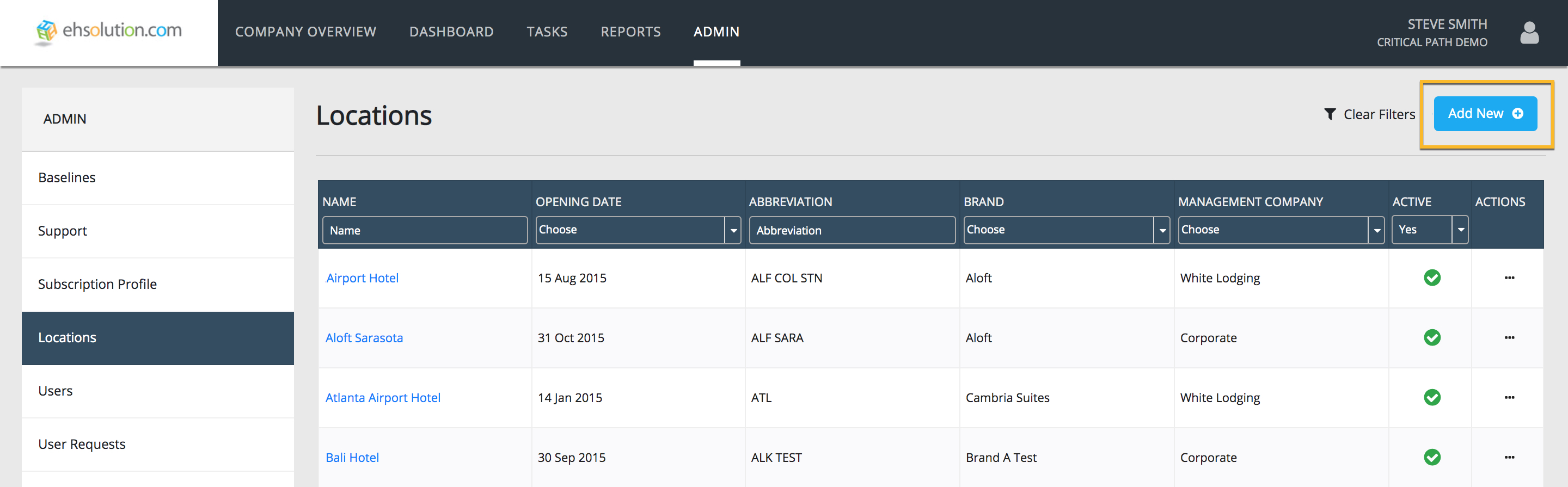
- Select Add New at top right of page
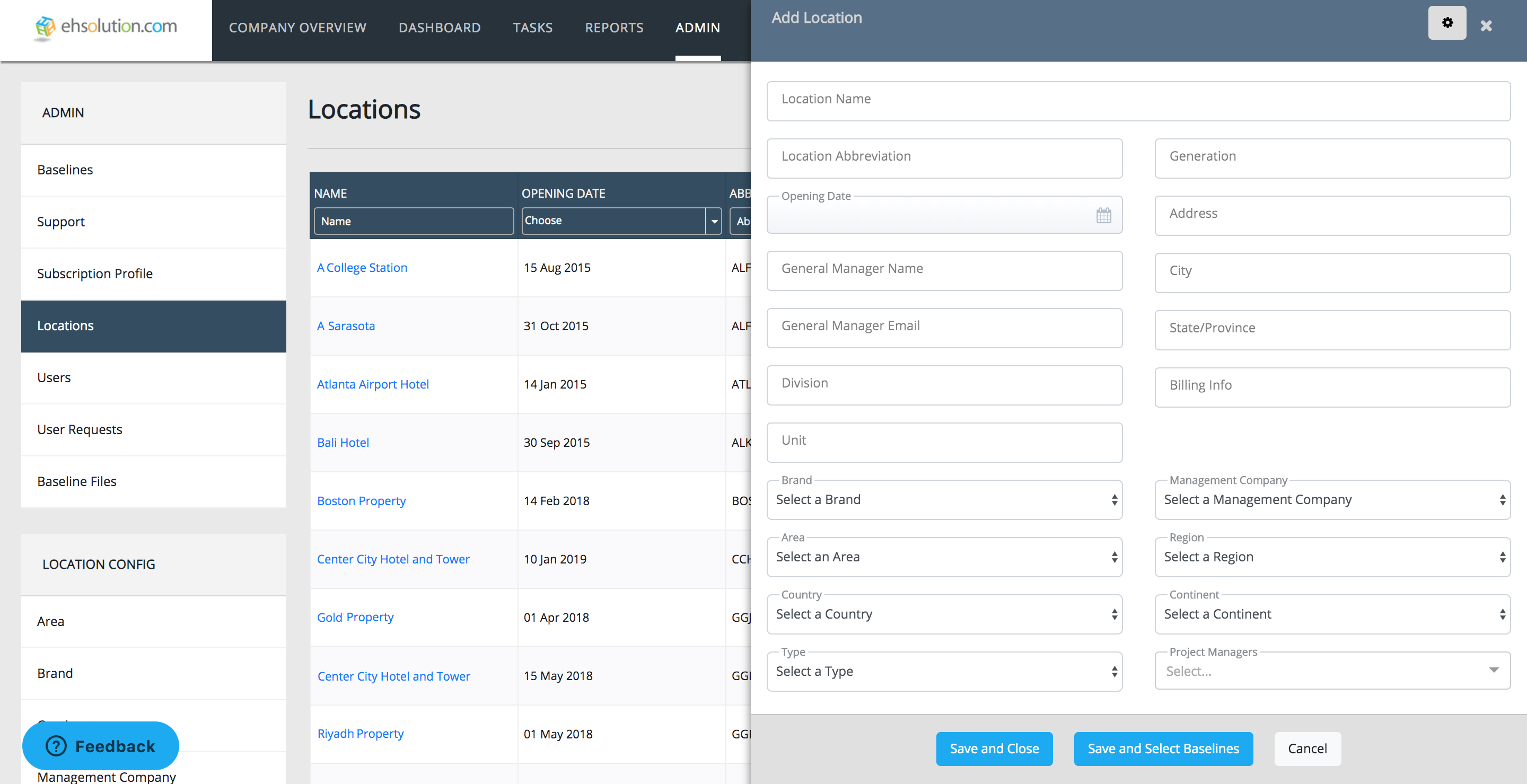
- Add location details and Select Save to create the location, or Save & Add Baselines to add Baselines to the location upon creation
To Import Locations:
- Navigate to the Admin menu
- Select Locations
- Select Import at top right of page
- A drawer will open where you can download an import tool in step 1 and once you have completed it, you can come to this same spot and import the tool in step 3.
- In the import tool all columns are mandatory unless it sayd (optional) in the title.
- Add location details and save to you computer so that you can upload the document.
Still need help?
Our Client Success team is available 24/7/365 and happy to walk you through it.
Contact support