
Tutorial for Projects and Implementations
What is Pacer?
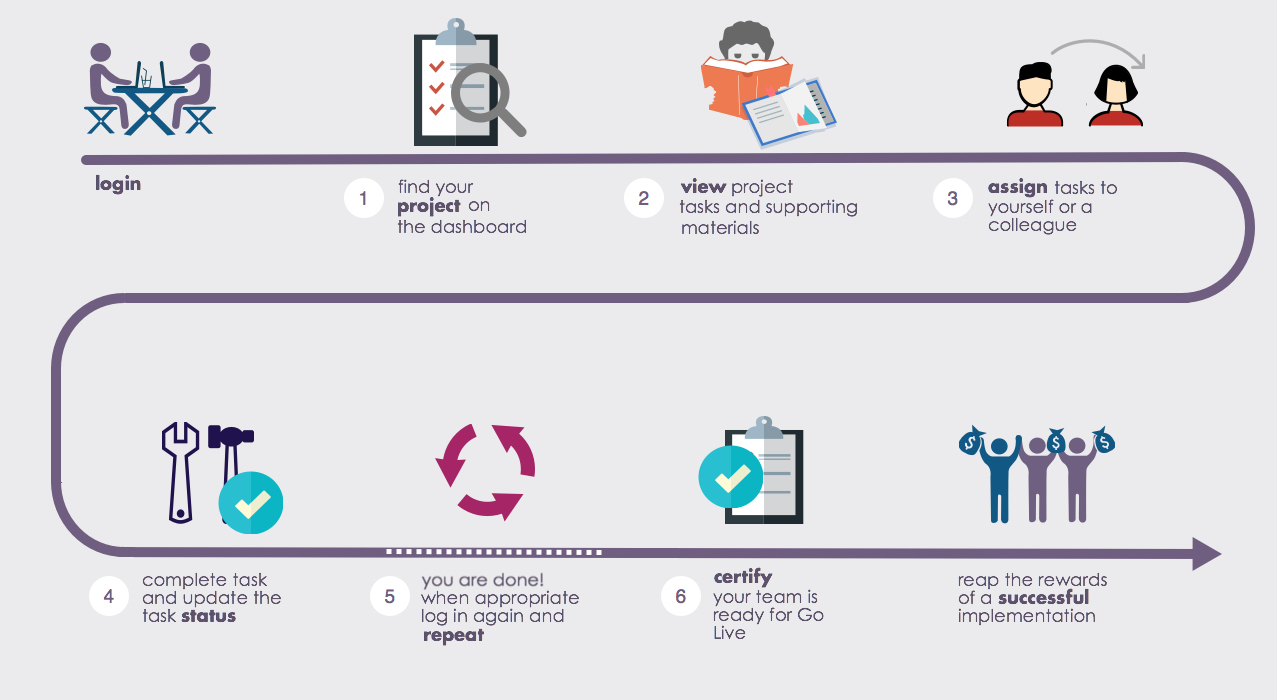
Pacer organizes the to-do lists for multiple projects and implementations in one place. It eliminates numerous spreadsheets and emails to simplify the communication of what needs to be done. Each task references the what, when, who, and how, so your team can stay aligned with brand initiatives and customer expectations.
① Find your project
|
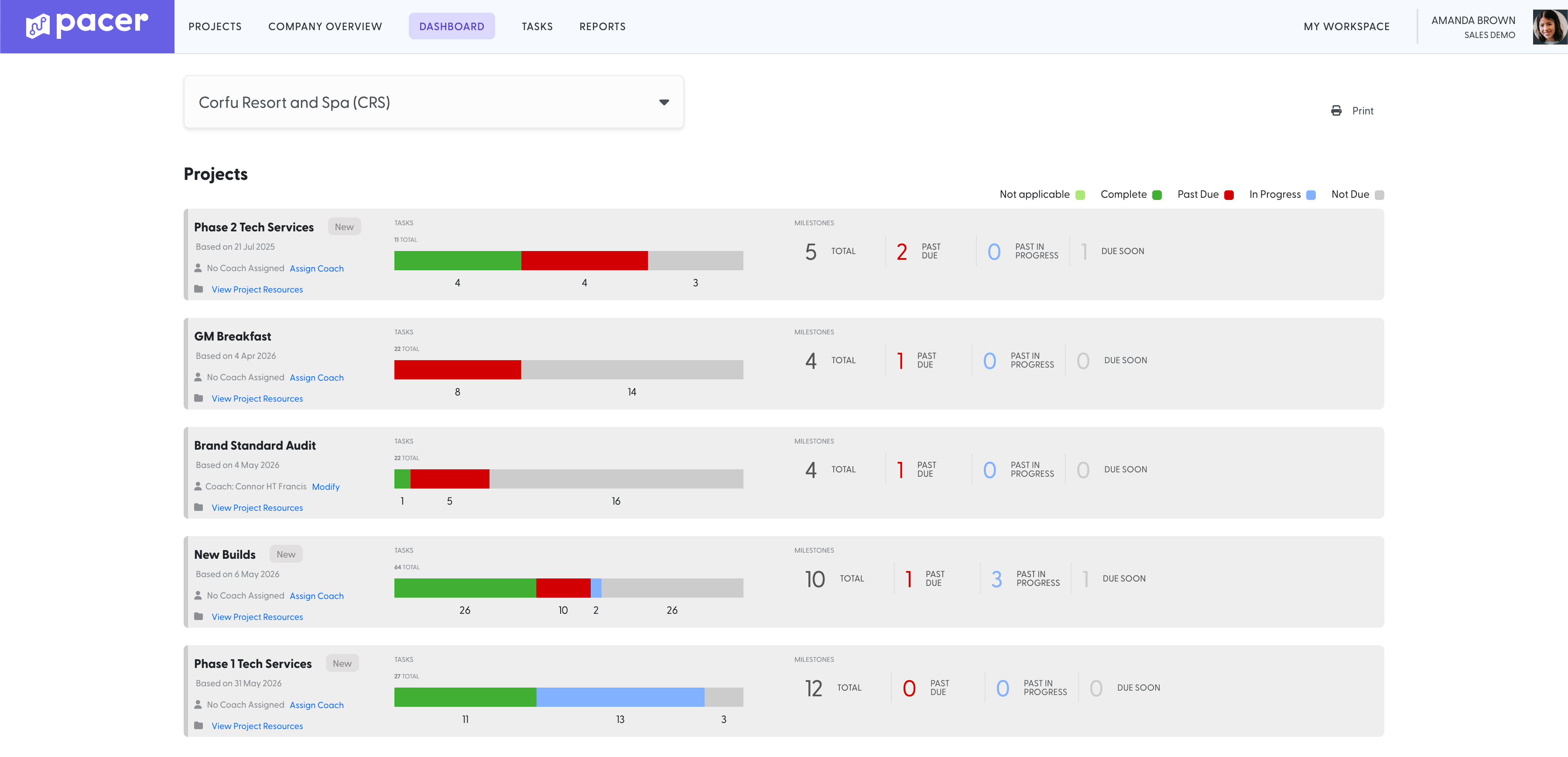
The Dashboard displays after login. Projects is a summary of each project associated with the location. The Project Name is also a link to display all active project tasks. The Tasks Graph clickable segments represent task status breakdown. Coach is the individual leading the implementation. View Project Resources provides key links and contacts. Milestones shows upcoming, in-progress, and past due milestones. |
 |
② View Project Tasks and Supporting Materials
|
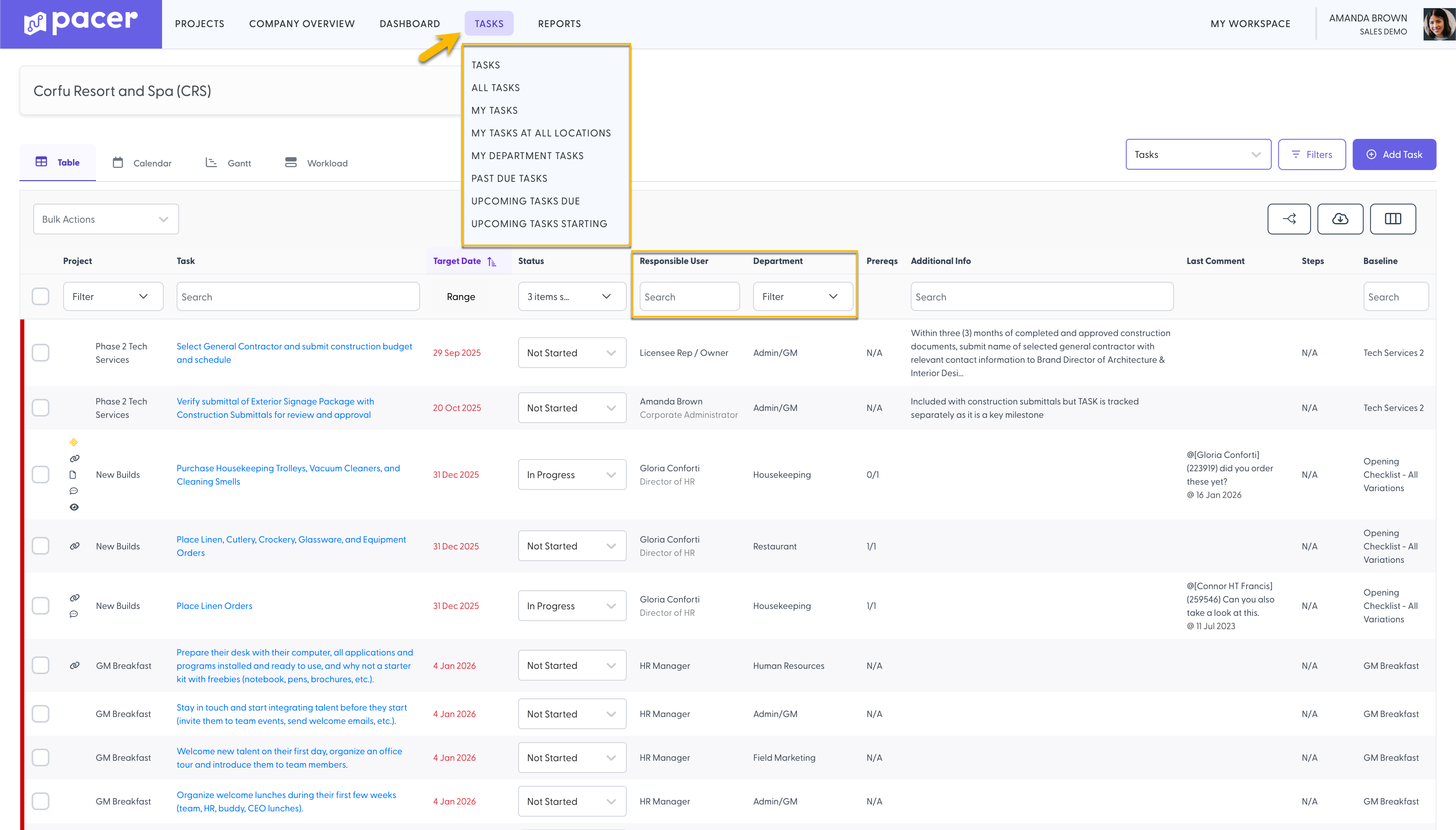
Select a Project's name on the Dashboard to view tasks. Tasks displays all associated tasks. Completed tasks are hidden by default. Hover on Tasks in the header to quickly view assigned or favorite department tasks. Use column headers or View Filters to narrow results. |
 |
③ Assign Tasks to Yourself or a Colleague
|
Select a task name to view full task detail. Change status or assign the task to yourself or a colleague. Comments allow @mentions and are time-stamped. Files lets you attach or link related documents. |
 |
④ Complete Tasks and Update the Status
|
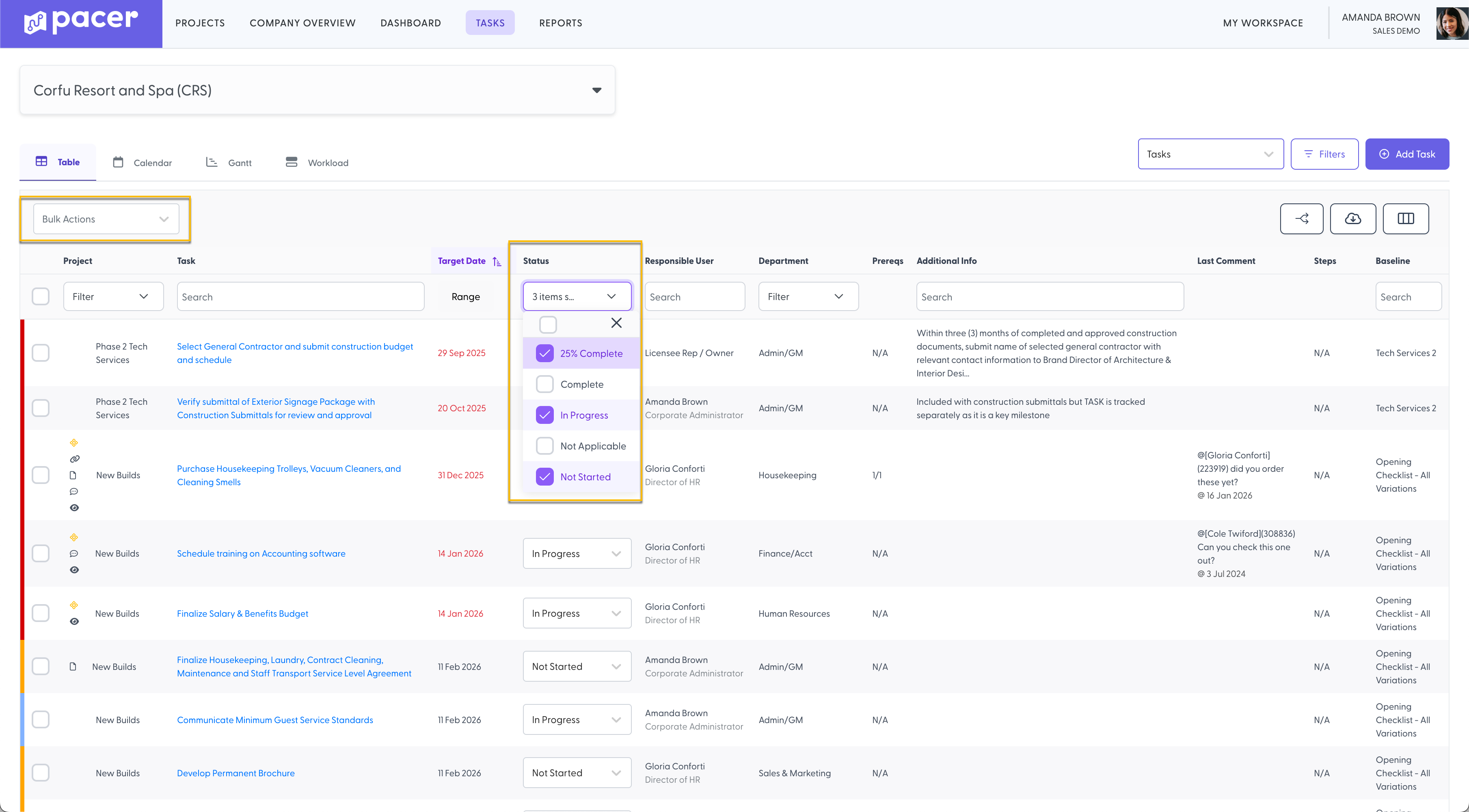
Update status as work progresses. Mark tasks Complete when finished. Update status directly in the task list. Use Bulk Update from the Bulk Actions dropdown for multiple tasks. |
 |
⑤ When Appropriate, Sign In Again and Repeat
|
Repeat steps 1–4 as you work on remaining tasks. Enable notifications via User Settings for reminders. |
 |
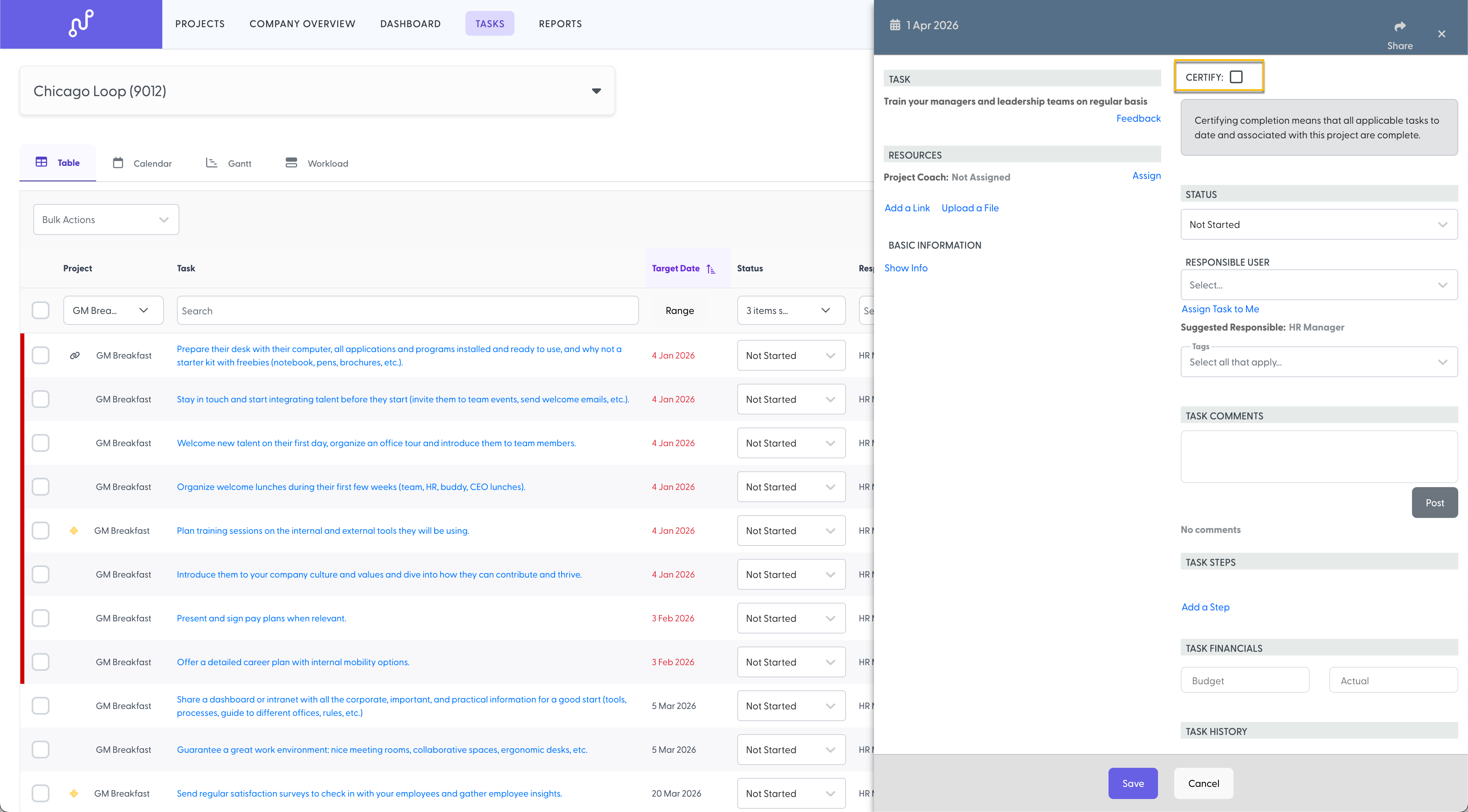
⑥ Certify That Your Team Is Ready to Go!
|
Certify when all tasks are complete. Your name and date are automatically recorded. You can uncheck certification if needed. |
 |
Still need help?
Our Client Success team is available 24/7/365 and happy to walk you through it.
Contact support