
Components of the Portfolio Health Page
Prerequisite articles
How to create a tab on Portfolio Health Page
Goal
To understand the components available on the Portfolio Health page, what each one shows, and how to combine them into tabs that match the way your team works.
Tip: Start with the article Portfolio page overview if you have not yet reviewed what the Portfolio page is and who configures it.
How tabs and components fit together
The Portfolio Health page is built from tabs. Each tab contains one or more projects and a chosen layout of components. Tab creation is controlled by individuals who have the role of Owner on the subscription, and a subscription may have more than one owner.
- Common use cases: openings, transitions, conversions, deflags, and rollouts.
- Most companies organize tabs one of two ways:
- By activity type: an openings tab, a transitions tab, a rollouts tab.
- By vertical or team: an openings team tab, an IT team tab, an HR team tab.
Note: Components read across every project assigned to the tab. A single tab can combine full-service openings, select-service openings, and resort openings, and the components will report on all of them together.
The components at a glance
| Component | Answers the question |
|---|---|
| Recent and Upcoming Openings | What has just gone live, and what is coming at us over the next year? |
| Locations and Teams by Attribute | How is my portfolio distributed across brands, regions, areas, and ownership? |
| Location Summary | Which specific locations are behind, and where exactly is the work stuck? |
Component 1: Recent and Upcoming Zero Dates
This component gives you the timeline view of your portfolio. It has two parts.
- Recent: locations with a zero date in the past 90 days.
-
Upcoming: a bar graph of locations with a zero date in the next 12 months.
- The x-axis is labeled by calendar month.
- Each bar shows the count of locations landing in that month.
- Bars are highlighted in red where a milestone is missing.
About the term "zero date": Zero date is the universal term for the date a location goes live. Depending on your workstream that may be an opening, a transition, a conversion, or a deflag. Using one term keeps the component consistent no matter what the tab is tracking.
Component 2: Locations and Teams by Attribute
This component breaks your portfolio down by the attributes you use to describe locations and teams. Each attribute appears as its own tile.
- Standard attributes include brand, area, region, type, and management company.
- Static attributes can be renamed to match your internal language. For example, "management company" can be relabeled "ownership group."
- Expand any tile to open a circular graph with the percentage breakdown for that attribute.
Component 3: Location Summary
This is the component you work in day to day. Every location appears as its own rectangle.
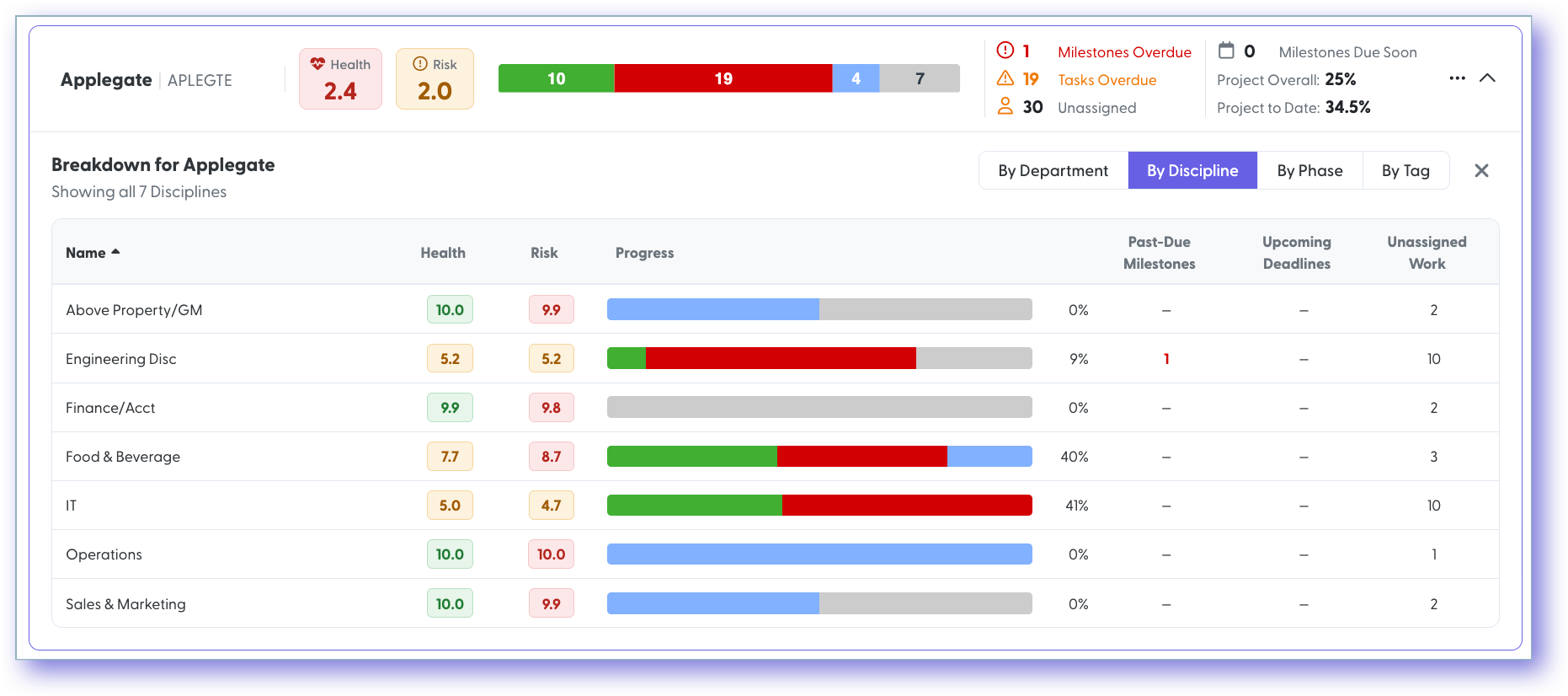
What each location tile shows
- Location name and abbreviation
- Health score and risk score
- A horizontal bar graph of task status: complete, past due, in progress, not started
- Overdue milestones, overdue tasks, unassigned tasks, and upcoming milestones
- Overall project completion percentage and project-to-date percentage
The expandable variant
The expandable version of this component adds a caret to each location so you can drill into discipline-level detail. For each discipline you see:
- Health score and risk score
- Task status progress bar and percentage completion
- Past due milestones and upcoming target dates
- Unassigned tasks
The breakdown is not limited to discipline. You can switch it to department, phase, or tag.
The right-hand panel

When you expand a location, a panel opens on the right with everything you need to act without leaving the page.
- Location attributes: management company, region, brand, property type.
- Task list by discipline: click any task to open the task detail drawer.
-
Tabs for notes, comments, contacts, files, and links.
- Files: every file uploaded to a task or to the property for that project.
- Links: every link uploaded to a task for that project.
Project-level view and sorting
- When a tab contains multiple projects, this component can display a project-level view instead of a location-level view.
- Sort by health score, risk score, zero date, or name, in ascending or descending order.
Setup and permissions
- Owners control tab creation. A subscription may have one or more owners.
- Owners choose which projects sit on a tab and which components make up its layout.
- Users with limited location access still see only the data they are permitted to access.
Quick reference
- Tab contents: one or more projects plus a chosen layout of components
- Zero date: the universal term for a go-live date across openings, transitions, conversions, and deflags
- Recent window: past 90 days
- Upcoming window: next 12 months, graphed by calendar month
- Red bar: a milestone is missing
- Drill-down dimensions: discipline, department, phase, tag
- Sort options: health score, risk score, zero date, name
More help
- You may open a support ticket at the top of this page, or email [email protected].
Still need help?
Our Client Success team is available 24/7/365 and happy to walk you through it.
Contact support