
How do I reassign a support ticket?
Goal
Reassign support tickets to the appropriate moderator, admin, or owner so that questions are directed to the right subject matter expert and resolved more efficiently.
Plan availability: This feature is available on all plans — Jog, Run, and Sprint.
Tip: Assign tickets to the user most familiar with the request topic (e.g., operations, HR, IT) to ensure a faster and more accurate response.
Note: When a support ticket is reassigned, the new assignee automatically receives an email notification with a direct link to the ticket in Pacer.
How To
- Click your name in the upper-right corner and select Settings/Admin.
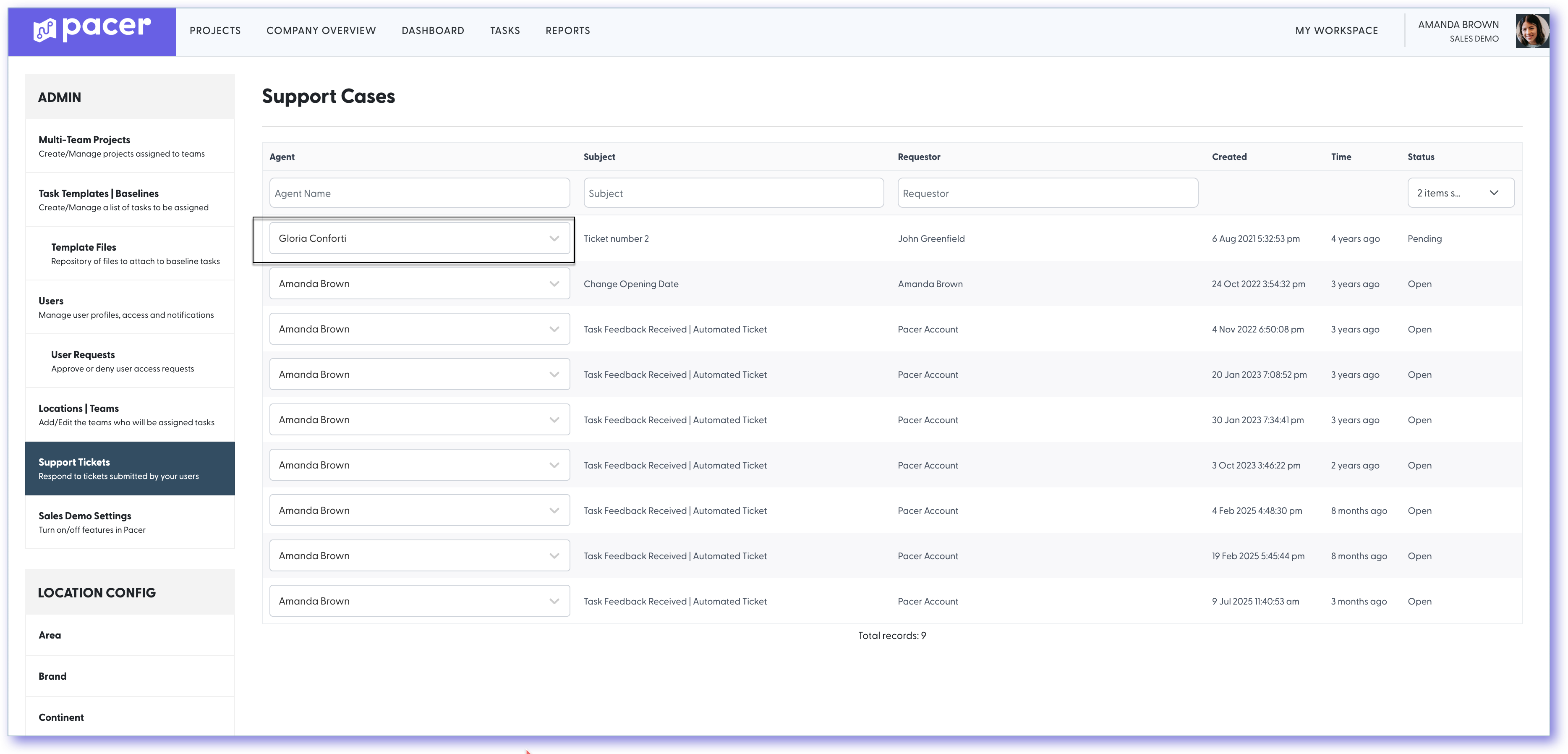
- Select Support from the menu.
- Locate the support ticket you’d like to update.
- Use the toggle or dropdown next to the ticket to select the Agent’s name you’d like to assign it to.
- The assignment saves automatically, and the selected support agent will be notified by email that they have a new ticket.
Still need help?
Our Client Success team is available 24/7/365 and happy to walk you through it.
Contact support