
How to Update a Location's Zero Date?
Goal
To change the Zero Date of a Project for one or more Locations where the project has already been published.
Related Article
How Changing a Project Zero Date Affects Location Task Target Dates
Notes
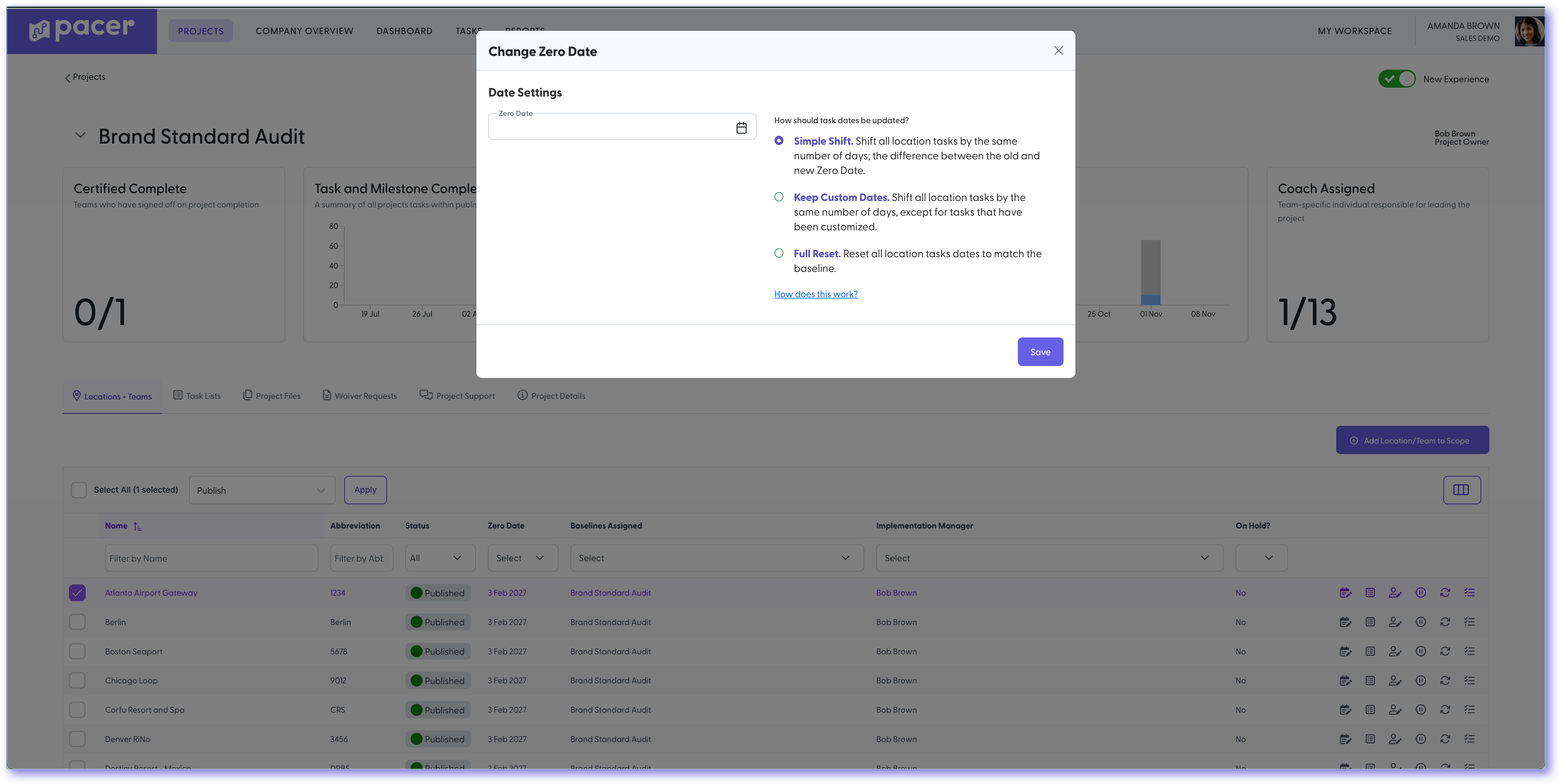
You can update the Zero Date for one or multiple locations directly from the Project Control Hub. When you change the Zero Date, any tasks in the project that were created using relative dates, such as target days out, will have their target dates automatically updated if they are currently “Not Due” or “In Progress.” However, tasks that were assigned a specific, unchanging target date will not be affected by the Zero Date change, regardless of their status.
 |
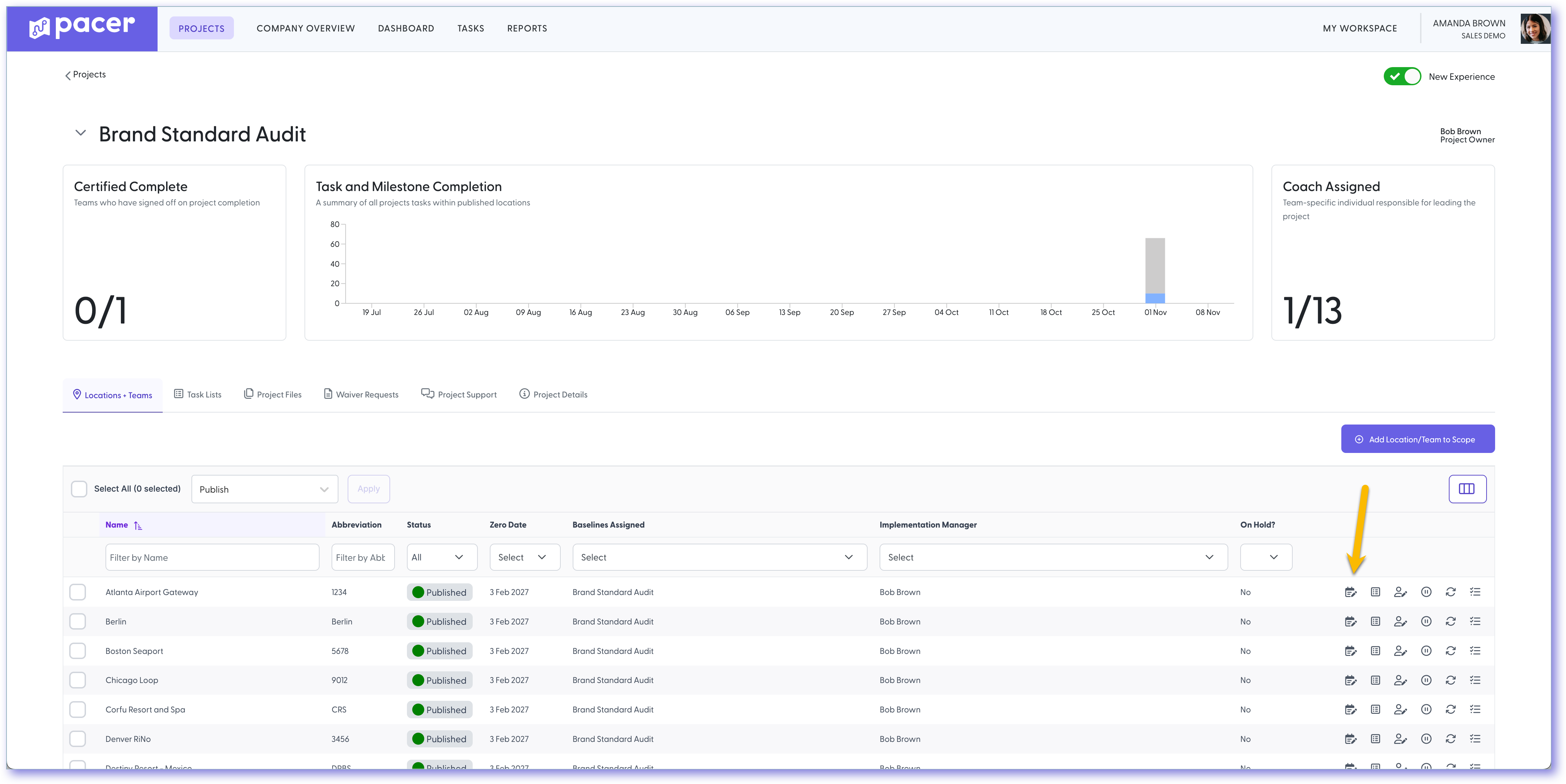
Change Zero Date | Appears only when Location has a Zero Date |
How To
To change a zero date, the project must exist, and the project must have been published to a location. A Location in which the Project has been published will have a current Zero Date as shown above.
- Navigate to your project by clicking Projects in the top navigation bar (you must have admin/owner/moderator access).
- Choose the appropriate project by clicking the arrow to the left of the project name.
- The icon shown above which is in the right more part of the row, will allow the individual to change the Zero Date for that particular location.
- It is possible to click on this icon and make your change, or select multiple check boxes along the left most column and use the bulk update feature to update the zero date for multiple locations at once. If doing this, understand that all locations that have been selected will all be given the same zero date.
Still need help?
Our Client Success team is available 24/7/365 and happy to walk you through it.
Contact support