
Using the Project Control Hub
Goal
The Project Control Hub is the centralized destination for managing projects in Pacer. Projects are created, then published to specific locations. From there, users can access those projects based on the locations they're assigned. The Project Control Hub (PCH) allows you to determine which locations or teams should complete the project, create tasks/baselines, and most importantly, set the zero date for each location.
Related articles:
How To
Navigate to Projects at the top of the page. When the Project Control Hub loads, you can change to any project by clicking the drop down arrow to the left of the project name. Select any project to begin.
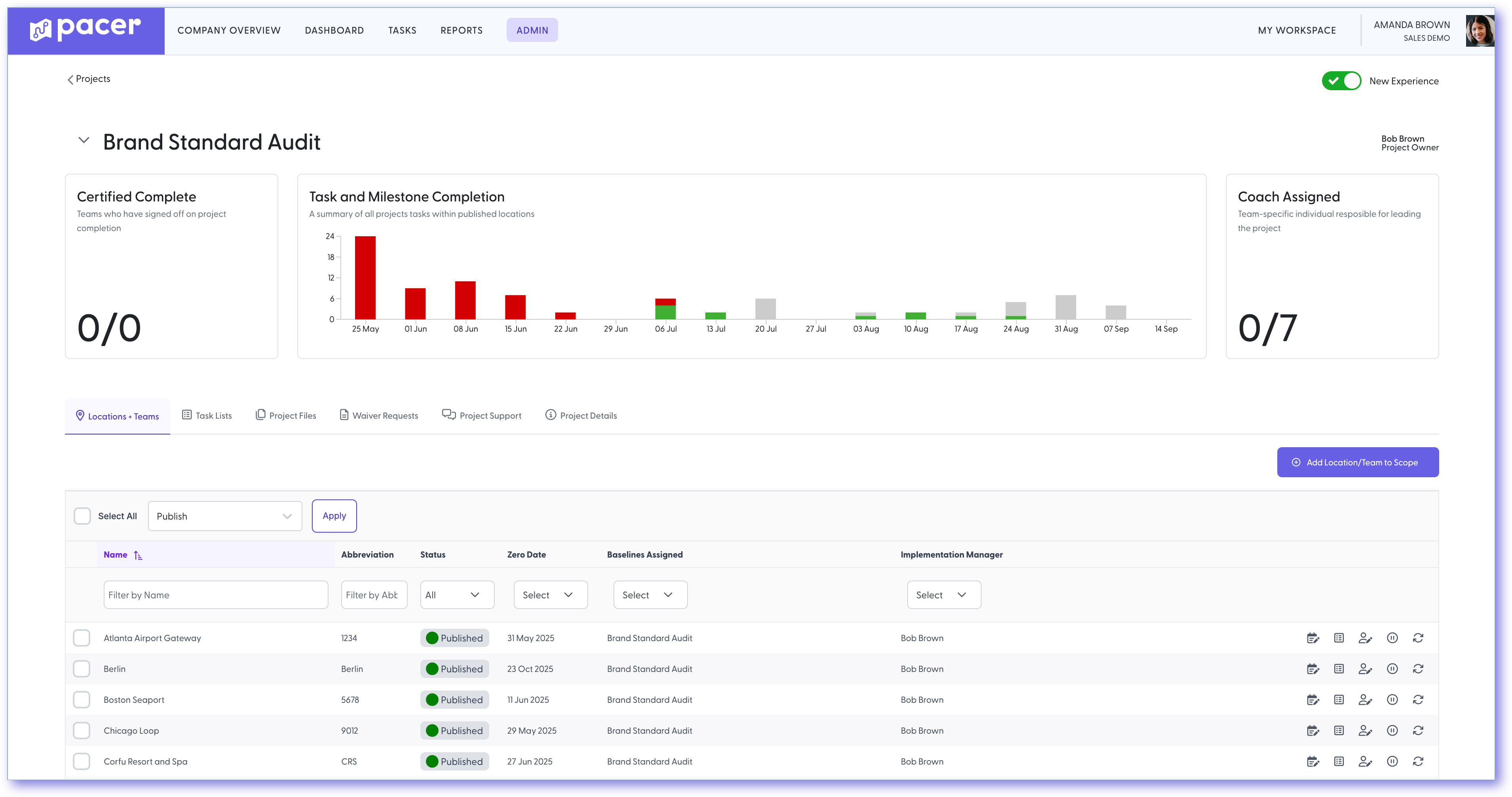
Locations + Teams
This tab shows the locations or teams that are in scope to implement and complete the project. To add additional locations to the project, click the "Add locations/teams to scope" button in the upper right corner.
Tip: Use filters to narrow down your search when adding locations/teams to scope.
Use the checkboxes in the left column and the bulk actions dropdown at the top left of the table to make updates across multiple locations at once.
| Icon | Title | Explanation |
|---|---|---|
 |
Manage Task Lists | Add additional baselines after publishing a project to a location. |
 |
Change Project Owner | Change the project owner for published locations. |
 |
Publish Project | Publish the project to a location still in draft status. |
 |
Pause Project | Temporarily pause a published project. |
 |
Resume Project | Resume a paused project. |
 |
Reset Location | Reset a project to original settings (must re-publish). |
 |
Remove Location | Remove a location from receiving this project. |
 |
Certify Location | Certify a location when all tasks are completed. |
 |
Change Zero Date | Set or change the zero date for the location. |
Task Lists
This tab displays the tasks associated with this project that may be assigned to locations and teams. A set of baseline tasks are grouped together into Baselines. Your project may have one more multiple baselines. Having multiple baselines is helpful when certain locations or teams need additional tasks beyond the main project task list. When you are ready to publish the tasks, you will be able to select one or more than one baseline to assign to the location(s).
Click the arrow next to each baseline name to expand and view tasks.
Tip: Locations/teams can be added or removed from baselines at any time.
| Icon | Title | Explanation |
|---|---|---|
 |
Edit Baseline | Edit baseline name, description, access, etc. |
 |
Expand Tasks | Edit all tasks within the baseline on a separate page. |
 |
Add Baseline Task | Add a single task to the baseline. |
|
Remove Baseline | Remove the baseline from this project. |
Adding or Importing Tasks
- Create Task: Add a new task and assign it to multiple baselines.
- Import Tasks: Use the Baseline Import Tool to import tasks to a specific baseline.
- Copy Baseline: Clone a baseline from another project. (Edits do not affect the original.)
- Create New Baseline: Create an additional baseline grouping for the current project.
Project Files
Tasks can require file uploads. All uploaded files (from any location or task) appear in this tab. You can approve, deny, or delegate review of each file. Use the bulk download option to manage everything efficiently.
Waiver Requests
Allow teams to request exemption from a project. When enabled, waiver requests can be approved or denied from this tab. Note, Waiver Requests is an optional feature.
Project Support
Users can create support tickets related to this project. Tickets are assigned to the designated project support contact. All project-related tickets appear in this tab and can be responded to directly.
Project Details
Edit the project’s name, support contact, implementation manager, zero date, tags, resources, and (if your plan allows) the names of epic dates.
Still need help?
Our Client Success team is available 24/7/365 and happy to walk you through it.
Contact support