
How do I use Baseline Link Search?
Goal
Pacer provides the ability to include several links within a baseline task. This makes it easy to mass distribute a task with relevant links for team members to action items accordingly. Some examples might include: Providing a link to the training material to be completed, a link to the ordering guide for FF&E, a form to be completed, or even a link to a document on the cloud.
How to Use Baseline Link Search
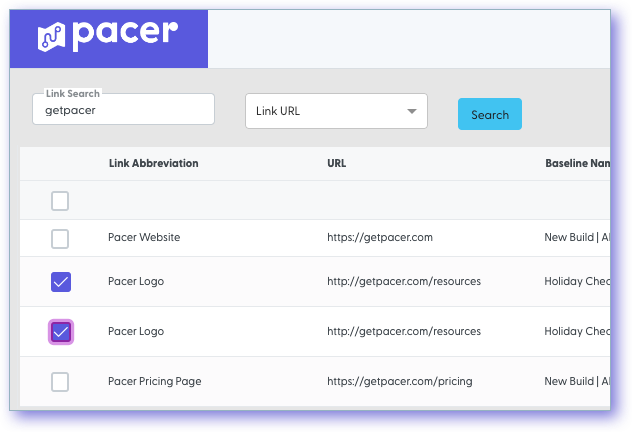
Navigate to the Admin Page and from the left-hand menu select "Task Templates | Baselines". Above the table of results, there is a link icon with the words "Link Search"  . On the next screen the search bar at the top allows you to search for a link by URL or by Link Name. when searchign for a link URL, it's not necessary to type out the entire address. For example, if you're searching for "https://getpacer.com", simply entering the "getpacer" will still return the correct results. The system recognizes partial URLs and will display relevant matches.

After using the search feature and finding all necessary links, start to make selections by ticking the boxes of the links in the left most column of the table.
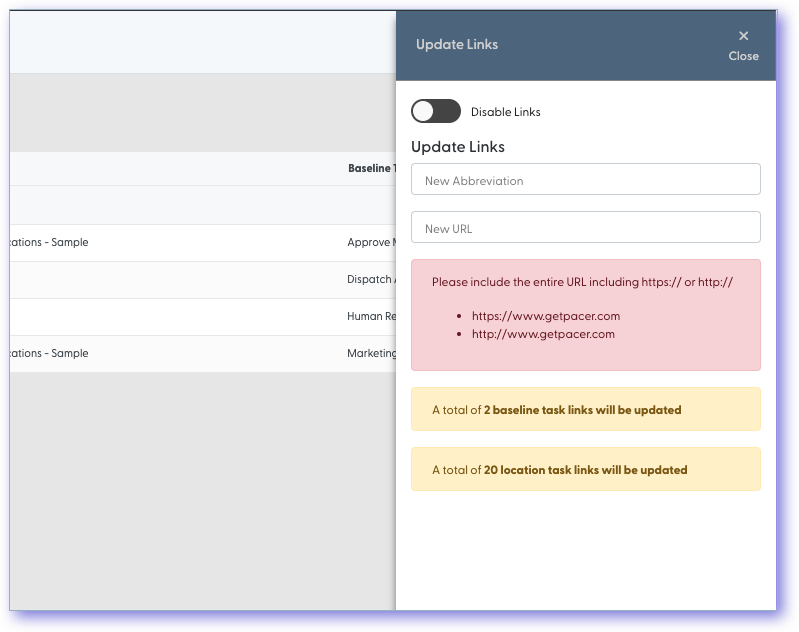
When the final selections are made, click the "Update Attributes" button  in the upper right hand corner of the screen. Here a drawer will open where changes can be made to the Link URL and the Link Name. It's important to note that here that if a link name (abbreviation) is changing, the link URL must also be included.
Still need help?
Our Client Success team is available 24/7/365 and happy to walk you through it.
Contact support