
Using Pre-Requisites and Dependencies
Available in Run and Sprint plans
Goal
To organize tasks so that they must be completed in a pre-defined order.
Notes
- If you are creating Task 1, 2, and 3 to be completed in this sequential order; Task 2 cannot be marked as complete until Task 1 has been completed.
- Establishing a pre-requisite or a dependent will accomplish the same result from different approaches; a pre-requisite is a task that needs to be completed before the task and a dependent is a task that needs to be completed after the task.
Viewing Pre-Requisite Progress
On the task page of a location or team, there is a column called Pre-Reqs. This column shows progress against the task’s prerequisites—helping you quickly understand what’s left before the task can be started.
For example, if a task has 3 prerequisites and 1 is complete, the column will display 1/3. Once all prerequisites are complete, the task becomes eligible to start.
Making a Task a Pre-Requisite
- Navigate to Admin > Baselines > Select your desired Baseline
- Once you have your baseline opened, click on a task that you'd like to be First in a sequence of tasks.
- Once the task drawer is opened, click on Mark as Dependent.
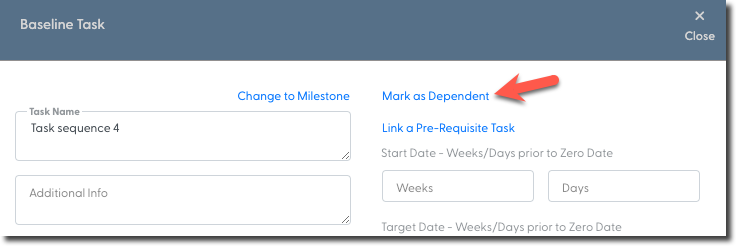
- When the drop down menu appears to select a task, you'll need to start typing the first few characters or words from the task you are looking for, then press enter on your keyboard.
- Once you see your desired task click on it and the system will turn the task you are viewing into the pre-requisite of the task you have searched for in the drop down menu.
Any location tasks that were created from this baseline task, will also be updated with the pre-requisite.
Making a Task a Dependent of Another Task
- Navigate to Admin > Baselines > Select your desired Baseline
- Once you have your baseline opened, click on a task that you'd like to be a predecessor in a sequence of tasks.
- Once the task drawer is opened, click on Link a Pre-Requisite Task.
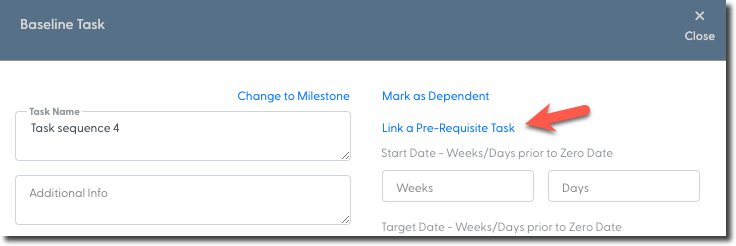
- When the drop down menu appears to select a task, you'll need to start typing the first few characters or words from the task you are looking for, then press enter on your keyboard.
- Once you see your desired task click on it and the system will turn the task you are viewing into the dependent of the task you have searched for in the drop down menu.
Still need help?
Our Client Success team is available 24/7/365 and happy to walk you through it.
Contact support