
How do I follow a task?
Goal
This article shows you how to follow tasks in Pacer so you can stay updated on their progress without being assigned to them.
Note: Following a task adds it to your “Following” filter and will soon enable email updates as the task changes.
Pre-Requisite
Before following tasks, it might be a good idea to set up a custom task view where you can call on a specific set of filters anytime. Follow the link below where we'll open this article in a new tab on your browser.
How to save a Custom Task View
How To
- Go to the Tasks page in your workspace.
- Select one or more tasks you want to follow by checking the box next to each task.
- Click the Bulk Actions dropdown menu above the task list.
- Choose Follow Task (this option appears third in the list).
- The selected tasks will now show a Following icon next to the task name, confirming you're following them.
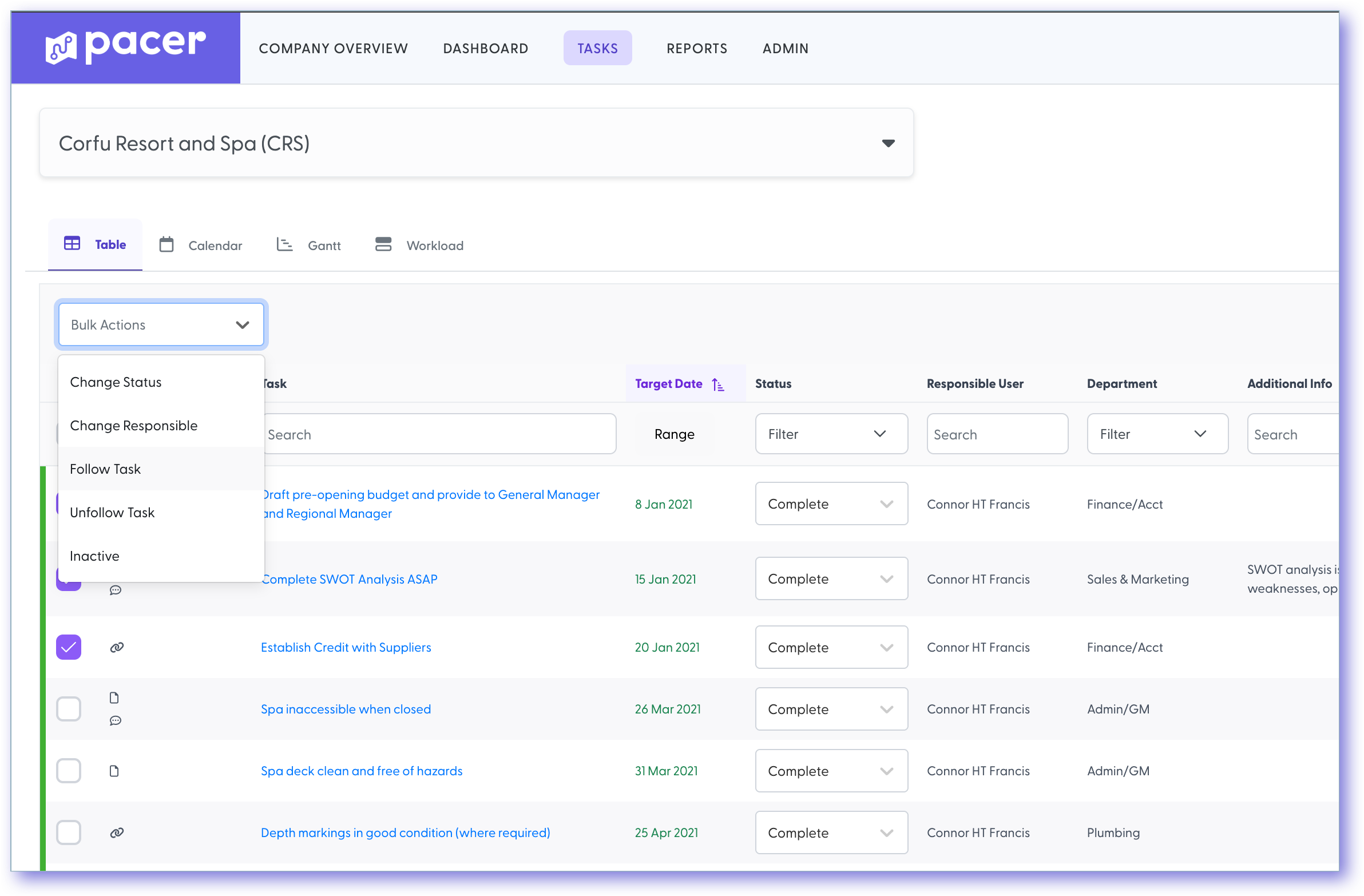
The “Follow Task” option appears in the Bulk Actions dropdown once you select at least one task.
Tip: Use the Following filter on the Tasks page to quickly view all tasks you're following.
Still need help?
Our Client Success team is available 24/7/365 and happy to walk you through it.
Contact support