
How do I upload a file to a task?
Note: The maximum file size is 100 MB.
To ensure a smooth upload, please make sure your file is in one of our supported formats. We accept most standard documents, spreadsheets, images, and compressed files:
Documents: Microsoft Word (
.docx), PDF (.pdf), Plain Text (.txt), Rich Text (.rtf), and Apple Pages (.pages)Spreadsheets: Microsoft Excel (
.xlsx), CSV (.csv), and Apple Numbers (.numbers)Images & Graphics: Standard images (
.png,.jpg,.jpeg,.gif), vector graphics (.eps), and AutoCAD drawings (.dwg)Presentations: Microsoft PowerPoint (
.pptx) and Apple Keynote (.keynote)Compressed Folders: ZIP (
.zip) and RAR (.rar)
Tip: If your file type isn't listed here, you can usually save or export it as a PDF or JPEG from your original application and upload it successfully!
Goal
This article explains how to add a file directly to a task. This file will appear wherever this baseline task is published. There is another way to add a file to task called Baseline File.
How To
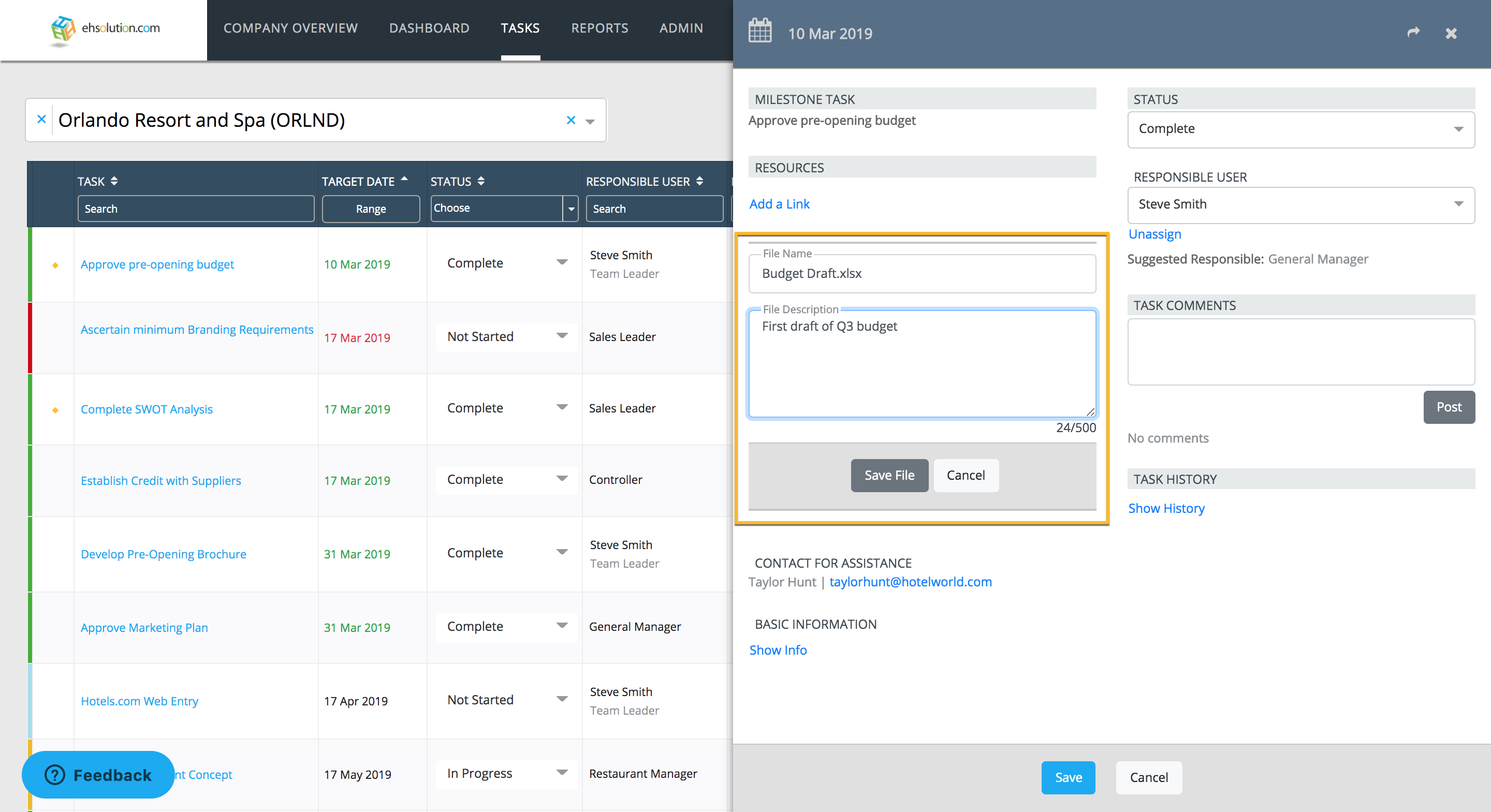
- Open the Task details slide-out
- Drag and drop your file into the slide-out or select the “Upload a File” link and select the file
- The File Name will automatically populate with the actual file that you attached but you can change it.
- Add a file description (optional)
- Select Save
- The file will now appear in your view of Task details. However, the file must be approved by an Admin before other Users can view the file. A green check icon will appear once the file is approved. If the file is denied by the Admin, it will appear with a red x icon.
Related Article
Still need help?
Our Client Success team is available 24/7/365 and happy to walk you through it.
Contact support