
How do I change the status of multiple tasks?
Goal
This article will guide you on how to maximize the use of our Bulk Update menu. In this case, the Bulk Update feature allows you to update the status of multiple tasks simultaneously, saving time and streamlining your workflow.
Steps
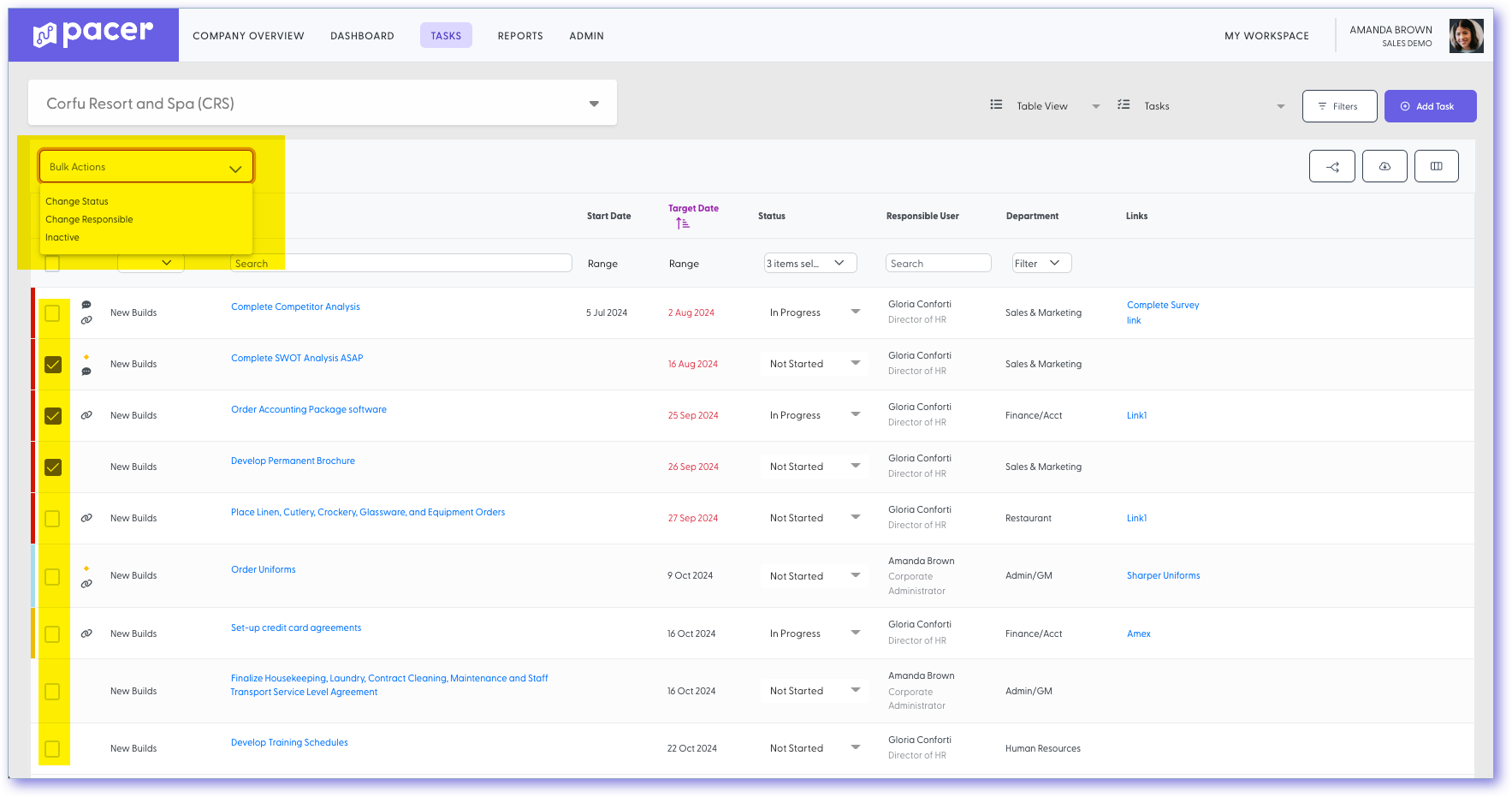
- On the Tasks listing, use the tick boxes along the left-hand side to select the tasks for which you would like to change the statuses.
- Click the Bulk Actions dropdown menu located at the top of the task table.
- Select “Change Status” from the list.
- Select the new Status and select the Save button.
- This will change the status of all tasks you previously selected to the status you have chosen.
Still need help?
Our Client Success team is available 24/7/365 and happy to walk you through it.
Contact support